
I travel a lot for work. Airports, hotel lobbies, coffee shops, co-working spaces. And every single one of them has a public Wi-Fi network that I have connected to without thinking twice. That changed after a colleague had his banking details compromised at an airport lounge in Amsterdam. After that, I started taking my online security seriously.
That is when I found iTop VPN.
I have now been using it for several months across multiple trips. And here is my honest take on whether it is actually worth your time.
Why Public Wi-Fi Is a Real Problem
Most people assume that because a Wi-Fi network belongs to a hotel or a well-known coffee chain, it is safe. It is not. Public networks are notoriously easy for attackers to intercept. Your emails, passwords, and browsing activity can all be exposed without you ever knowing it happened.
Believe it or not, you do not need to be doing anything particularly sensitive for this to matter. Simply checking your emails or logging into a work portal on public Wi-Fi puts you at risk. A VPN encrypts your connection so that even if someone is watching the network, they cannot see what you are doing.
That is the core problem iTop solves for me when I travel.
How I Set It Up on Windows
The setup process was genuinely straightforward. Here is exactly how I did it.
Step 1: Download iTop VPN for Windows
Head to the iTop VPN website and download the version that matches your device. It supports Windows x64, x86, and Windows on ARM, so most laptops are covered. The file downloaded quickly and without any issues.
Step 2: Install and Launch
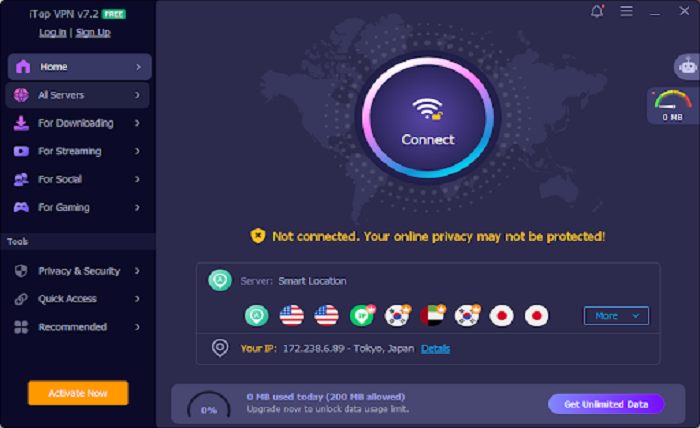
Installation takes about two minutes. Run the installer, follow the prompts, and the app opens automatically when it is done. The interface is clean and simple. Nothing confusing, nothing buried in menus you have to hunt for.
Step 3: Connect to a Free VPN Server Without Login
This is the part that surprised me most. You can connect to a free server without creating an account at all. Open the app, select a server location, and hit connect. That is it. Within seconds, my connection was encrypted, and I was browsing securely. No signup form. No credit card. No waiting for a confirmation email.
What I Actually Access With It While Traveling
Here is where iTop VPN genuinely earns its place in my travel setup.
On a recent trip across three countries in two weeks, I used it to access Netflix content that was blocked in two of those locations. I used it to stay on WhatsApp and Telegram in a country where both were restricted. And I used it to access ChatGPT in a region where it was unavailable entirely.
The server network is substantial. Over 3,200 servers across more than 100 locations worldwide. In practice, that means wherever I land, there is a fast, nearby server I can connect to. I have never had a situation where I could not find a working connection.
The Connect Assistant feature is worth mentioning here specifically. Rather than picking a server manually, it matches you to the right type automatically depending on what you are doing:
- Streaming servers optimised for video content
- Social servers for accessing restricted platforms
- Download servers optimised for speed
- General browsing servers for everyday use
For a traveller jumping between tasks throughout the day, this is genuinely useful.
The Security Features That Matter on the Road
The Kill Switch is the feature I rely on most. If the VPN connection drops unexpectedly, it immediately stops specified apps from accessing the internet, so your real IP is never accidentally exposed. On a hotel network that cuts in and out, this matters more than most people realise.
Beyond that, there are a few other features worth knowing about:
- Dark Web Monitor scans for compromised personal data and alerts you if your information appears in a data breach
- Browser Privacy scans and clears tracking data from your browsing history
- Ad Blocker stops malicious ads from loading and reduces malware infection risk
- Security Reinforce scans your system for vulnerabilities and fixes weaknesses before they become a problem
- Double VPN connects through two servers simultaneously and encrypts traffic twice for situations where you need an extra layer of protection.
Needless to say, having all of this built into one lightweight tool is far more convenient than running separate apps for each function.
What I Actually Like About It
After months of regular use across different countries, here is what stands out.
- The no-login free tier is genuinely useful. Most VPN services gate everything behind an account. iTop lets you connect immediately, which matters when you are rushing through an airport
- The Windows app is light and fast. It does not slow your machine down or drain battery the way some VPN clients do
- One premium account covers up to 8 devices simultaneously. My laptop, my phone, and my tablet are all covered under one plan.
- The ARM64 support means it runs properly on Microsoft Surface devices and other ARM-based Windows machines that many VPN providers still leave out.
- It works consistently in hotels and coffee shops without dropping the connection mid-session
What Could Be Better
Balanced means honest. So here is what I think could improve.
- The free tier limits which servers you can access. For specific countries or streaming platforms, you will likely need the paid plan. Speed on free servers can dip during peak hours. Not unusable, but noticeable on a video call
- The settings panel could offer more granular control over protocols for users who want to go deeper into configuration.
My Honest Verdict
The simple truth is, I was not expecting much from a free VPN. Most of them are either too slow to bother with or push you toward a paid plan every two minutes. iTop VPN is different. It does what it promises without making the experience frustrating.
For anyone who travels regularly and connects to public Wi-Fi without a second thought, this is worth trying. Security, access, and a no-login free tier make it a genuinely practical travel tool and not just another app collecting dust on your desktop.